Getting Started with SmartCloner
Clone any GHL funnel or website in seconds. Follow this guide to set up your account and start cloning.
Step-by-Step Guide
Create Your Account
Head over to smartcloner.com/signup and create your account. You can sign up with Google for instant access, or use your email address.

Download the Chrome Extension
Install the SmartCloner Chrome extension from the Chrome Web Store . You can also find the download link on our homepage.
Purchase Credits
Before you can start cloning, you'll need credits. Head to the pricing section and choose a credit package. Each page clone costs 100 credits and each search costs 10 credits. Once your purchase is complete, a license key will be automatically generated and available on your dashboard.
Copy Your License Key
Once logged in, head to your dashboard and copy your license key. You'll need this to activate the Chrome extension.

Find a Website to Clone
You have two options to find GHL sites to clone:
- Direct cloning — Open the extension on any GHL site you already have in mind.
- Search tool — Use our built-in search to browse live, published GHL sites by niche. Our database is continuously growing.
If a GHL site is supported, the SmartCloner extension icon will look like this:
 1
1Browse and Preview Results
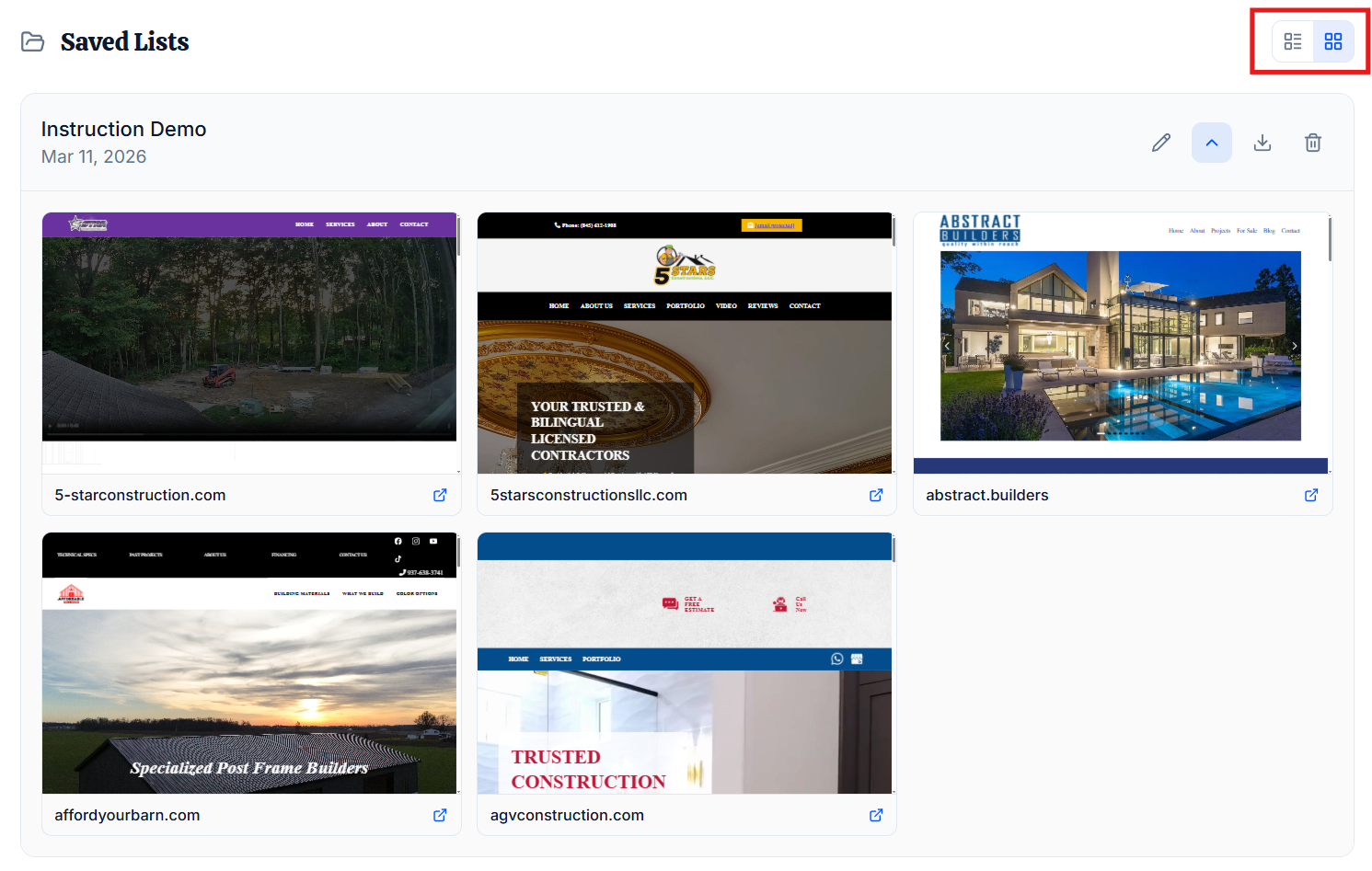
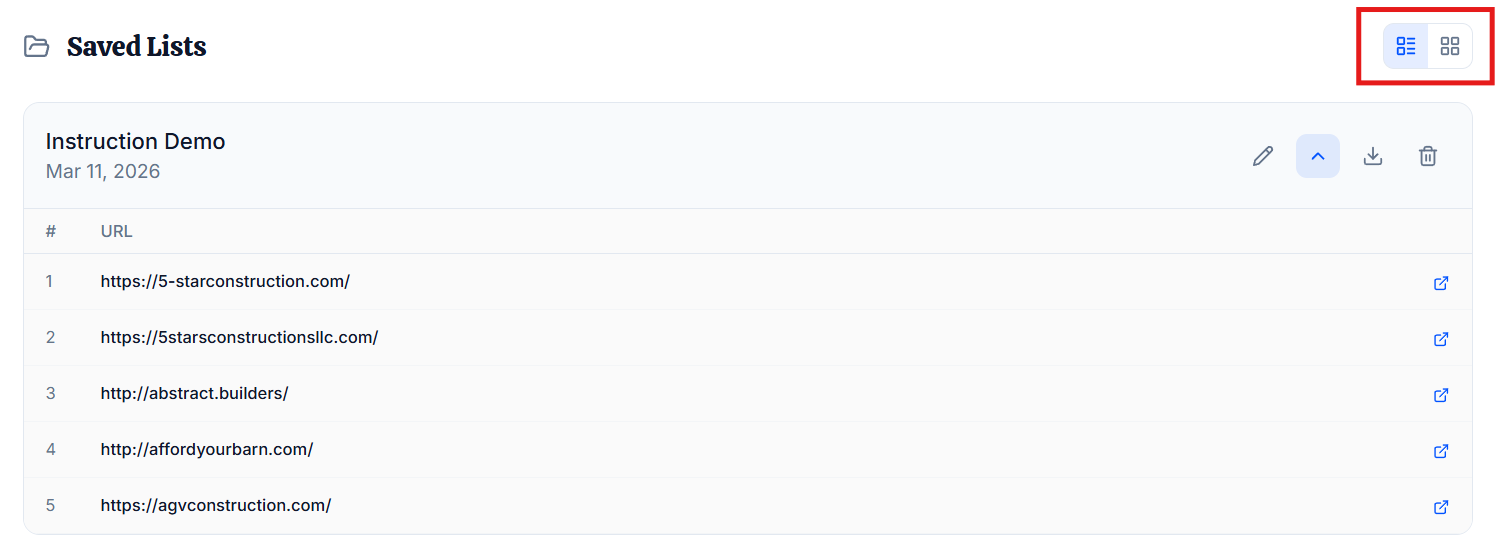
After searching, browse results in list view or tile view to preview websites before cloning. You can also download results for future reference. All of your previous searches are saved at the bottom of the search page so you can come back to them anytime. Saved lists automatically filter out duplicate results from future searches. If you delete a saved list, those results will appear again.
Select Pages to Copy
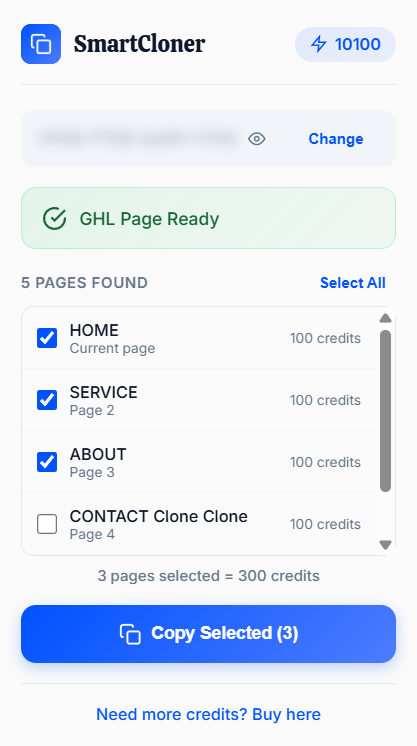
Open a GHL site you'd like to clone. Launch the SmartCloner extension — it will automatically detect all available pages. Select one page, multiple pages, or use Select All to clone the entire website.
Each page clone costs 100 credits. The total credit cost is shown live based on your selection.
Note: Copying does not consume credits — credits are only deducted when you paste.
Paste into Your GHL Account
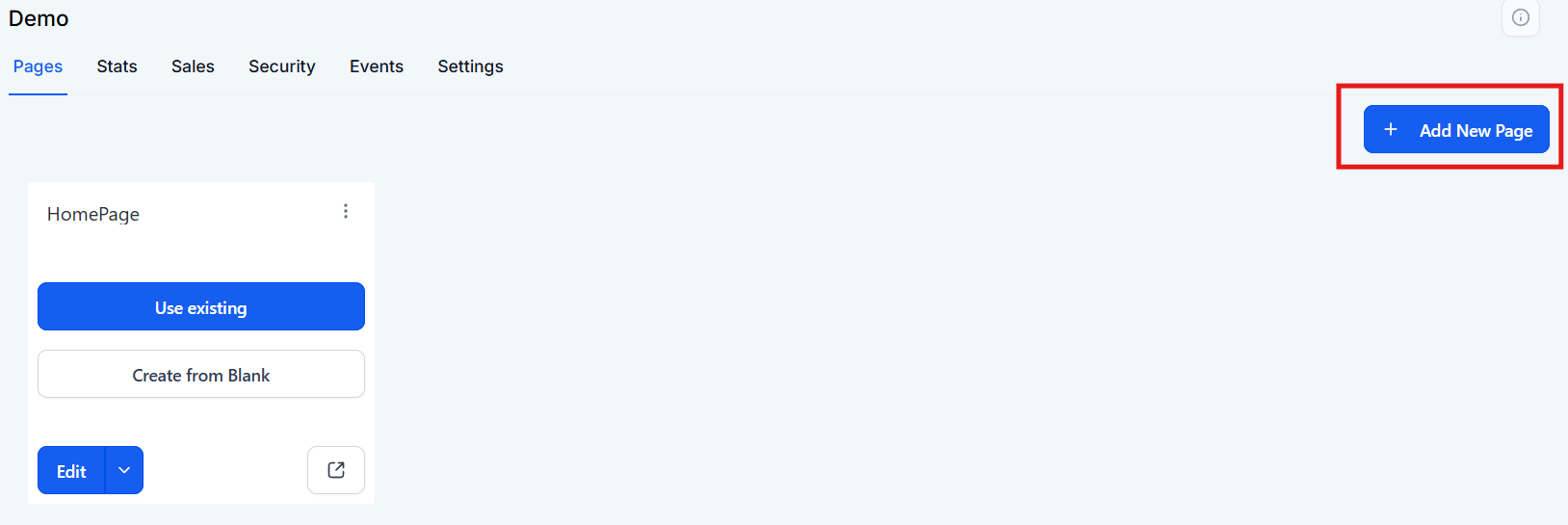
In your GoHighLevel sub-account, create a new website with just one blank page — even if you're cloning multiple pages. SmartCloner will automatically create the additional pages for you.
Create a new funnel and add a single blank page. This is your starting point regardless of how many pages you're cloning.
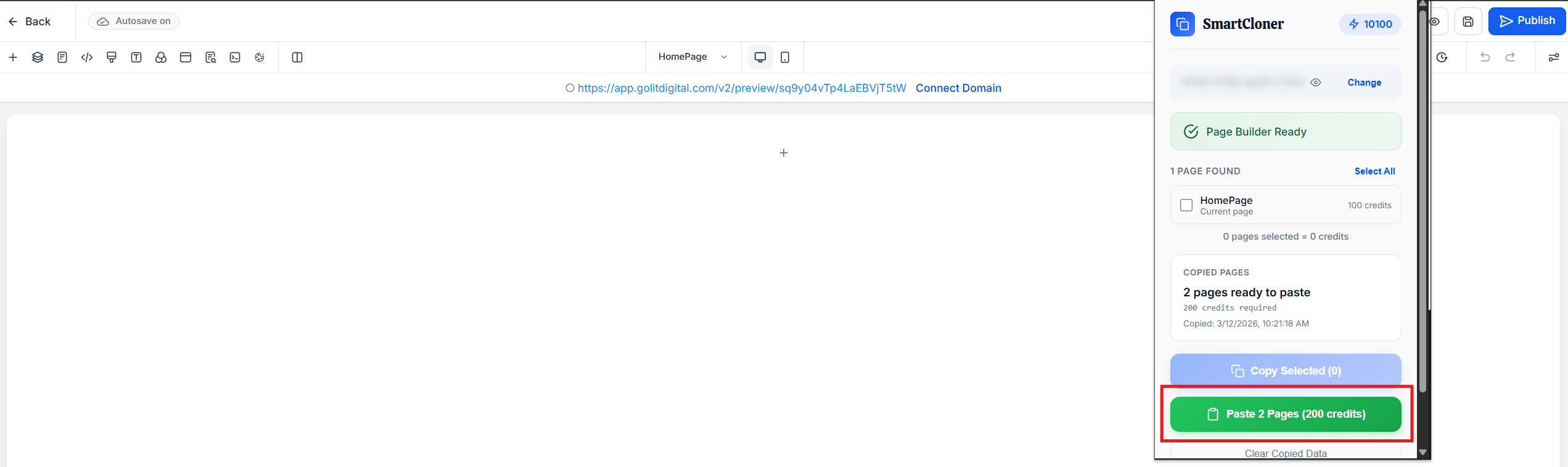
Open the blank page in the funnel builder, launch the SmartCloner extension, and click Paste.
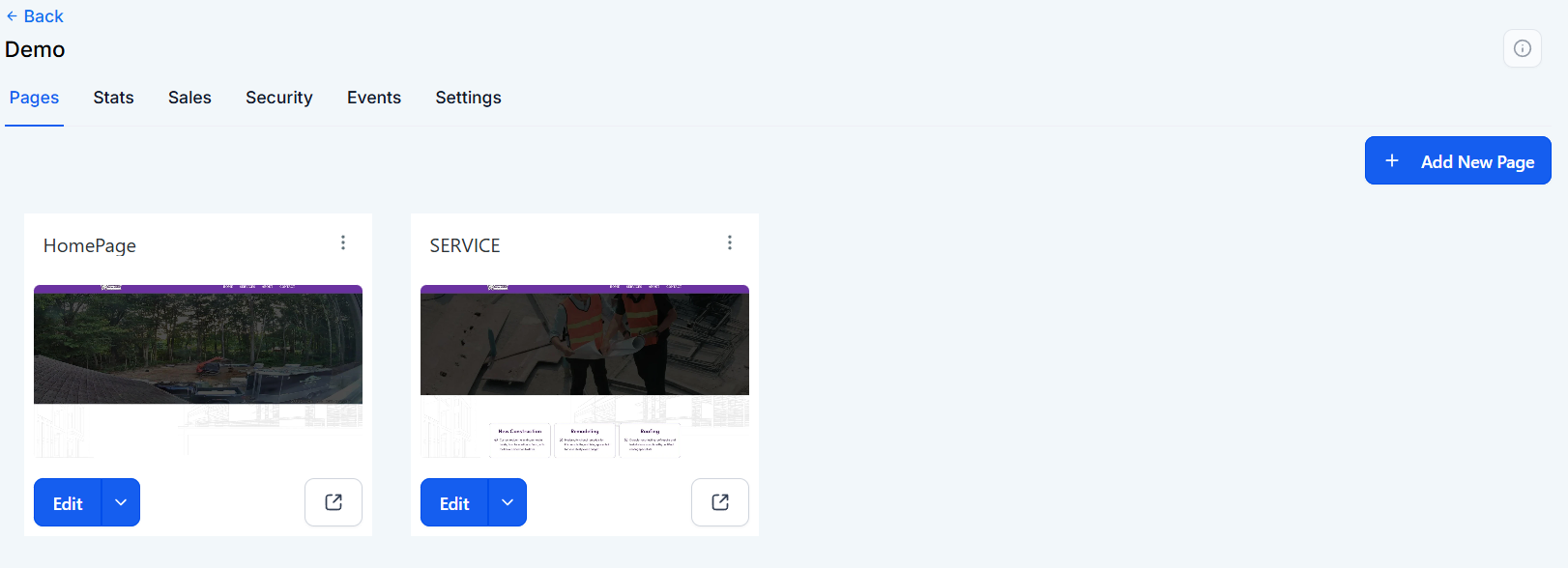
All copied pages are now in your funnel. Navigate between them to review, then customize as needed.
Customize for Your Use Case
Once your pages are loaded, customize the content to fit your brand and use case. SmartCloner is designed for inspiration, not duplication — always make the content your own.
Troubleshooting
If any of the steps below don't resolve your issue, we're more than happy to refund or add credits to your account. We don't make it a hassle — your experience matters to us, and we want it to be as smooth as possible. We're also continuously improving SmartCloner to handle more edge cases.
What SmartCloner Does Not Copy
SmartCloner copies the visual layout, structure, and custom CSS of a page. However, the following are not transferred:
- Automations or workflows
- Emails or triggers
- Forms or calendars
- Page-to-page hyperlinks (multi-page clones are not automatically linked to each other)
These elements need to be configured manually in your GHL account after cloning.
Page Takes a While to Load
In rare cases, GHL servers may run a bit slower, and the pasted page may take a few minutes to fully render. If the page appears blank or incomplete right after pasting, check back after a few minutes — it's possible the page loaded successfully after some time.
Formatting Issues
Sometimes the cloned page may not look exactly like the original. This usually happens when the source website includes extensive custom code (HTML, CSS, or JavaScript) that goes beyond a standard GHL build. Because of these custom elements, our tool cannot fully replicate the site.
Tip: Try adjusting the structure in the GHL builder. Often it's just one or two components causing the issue — such as a background color, custom HTML block, or JavaScript element. Removing or tweaking those can fix the layout.